Your coworker opens the photo you sent. Instead of your perfectly framed shot, they get an error message. The file ends in .heic, and their Windows laptop has no idea what to do with it. This happens to millions of iPhone users every week, and the fix is simpler than it looks. You just need to know which format belongs in which situation.
Format at a Glance
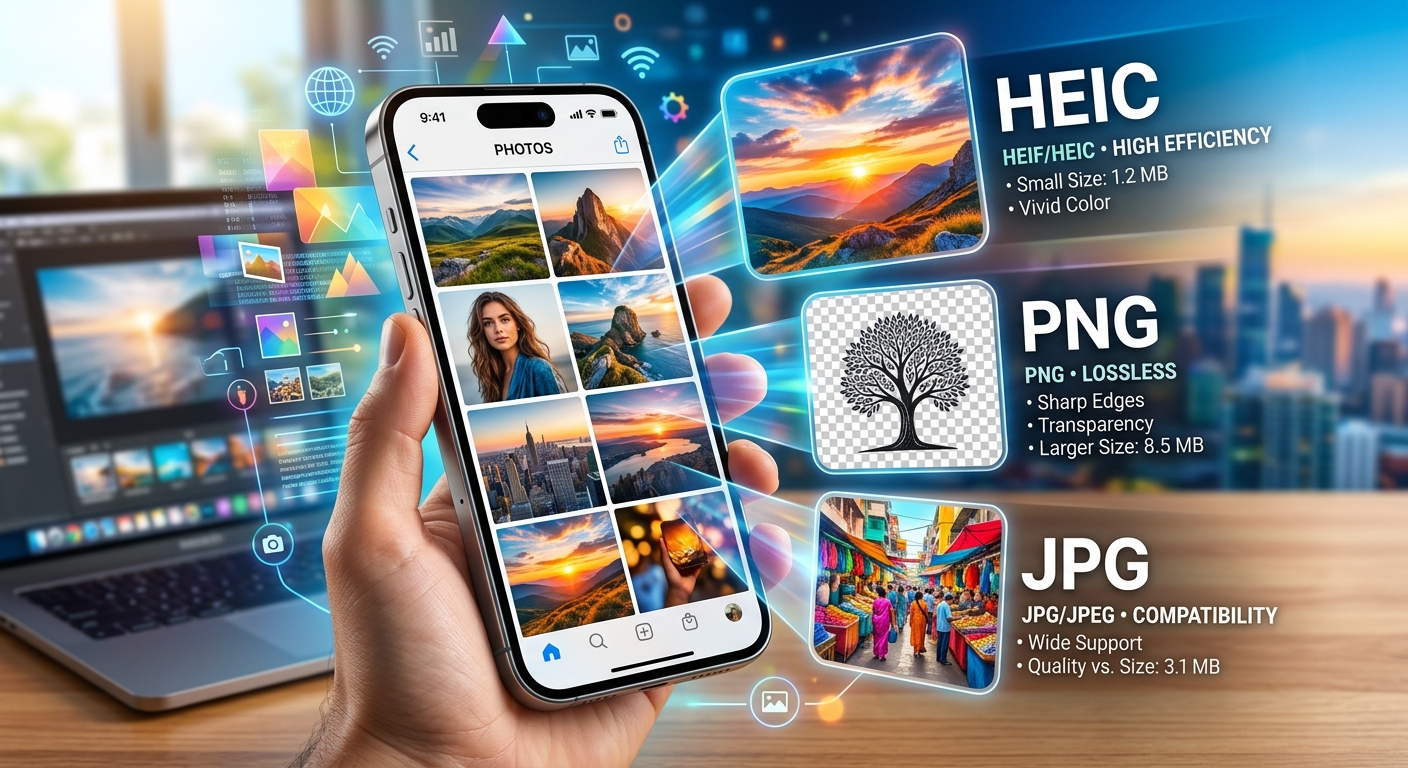
- HEIC is Apple's default format: space-efficient, but widely unsupported outside Apple devices.
- PNG is lossless, meaning every pixel is preserved, making it the right call for editing or designer handoffs.
- JPG is the universal standard for sharing, texting, and social media, with no compatibility surprises.
- Print labs typically want JPG or TIFF; always confirm the accepted format before you submit.
- Converting HEIC to PNG or JPG is free and browser-based, with no software or account needed.
What Your iPhone Is Doing with Your Photos by Default
Since iOS 11, the iPhone has saved photos in HEIC format by default. HEIC stands for High Efficiency Image Container. Apple adopted it because it produces files roughly half the size of a comparable JPG, without a visible drop in quality. That is a meaningful saving when your camera roll runs into the thousands.
On Apple devices, HEIC is invisible. You shoot a photo, it saves, and everything works. iCloud, Messages, AirDrop, and the Photos app all handle the format natively. The problem surfaces the moment a file steps outside that ecosystem.
Windows 10 and 11 need a separate codec to open HEIC files, and that codec is not free. Android support is inconsistent across devices and versions. Most third-party photo editors, browser-based tools, and print services either do not recognize the format or refuse to accept it. That gap is why so many iPhone users end up converting their photos before they can actually use them.
The Windows and Android Sharing Problem
Picture sending a batch of photos to a colleague on a Windows machine. You attach them to an email, they arrive, and then nothing opens. That is the HEIC problem in its most common form. The same thing happens when you upload to a shared folder, drop files into a Slack channel, or submit images through an online form.
For any situation where you are sending a photo to someone outside the Apple world, JPG is the right answer. It is universally supported. Every browser renders it. Every operating system can open it. Every messaging app, email client, and image viewer handles JPG without a second thought. If your goal is for someone to simply see the photo with zero friction, JPG removes every possible barrier.
The tradeoff is compression. JPG uses lossy compression, discarding some image data to shrink the file. For casual sharing, texting a snapshot, or posting a picture in a group chat, this tradeoff is completely invisible. You would never notice the difference on a phone screen or a laptop display, and the smaller file size means faster sending and easier storage.
Handing Files to a Designer or Editing in Third-Party Apps
This is where format choice starts carrying real weight. If you are passing photos to a graphic designer, a retoucher, or a marketing team, they are likely opening those files in Adobe Photoshop, Affinity Photo, Figma, or a similar professional tool. HEIC support in these apps ranges from limited to nonexistent. PNG cuts through that entirely.
PNG uses lossless compression. Nothing is thrown away during the save. The file that comes out of a PNG conversion is a pixel-for-pixel copy of the original, as defined in the PNG format specification, which was designed from the ground up for situations where accuracy and reproduction fidelity cannot be compromised.
There is a second reason designers prefer PNG: transparency. The format supports an alpha channel, which allows parts of an image to be fully or partially transparent. If a designer needs to remove a background, place your photo on a colored canvas, or isolate a subject without a white box around it, they need a format that supports transparency. JPG does not have this capability. HEIC technically can include alpha data, but software support for that feature is unreliable. PNG handles it cleanly every time.
If you are shooting product photos for an e-commerce listing, preparing a logo for print, or delivering assets to a creative team, PNG is the format to reach for. You can convert your HEIC files with a free HEIC to PNG converter that runs entirely in your browser, no installation and no account required.
JPG for Everyday Photos and Social Media Posts
Not every photo is going to a design project. Most end up in Instagram stories, family group chats, or attached to a quick email. For all of these uses, JPG is the format that makes sense.
Social platforms like Instagram and Facebook recompress images on upload regardless of the format you start with. Both JPG and PNG get put through the platform's own compression pipeline before they appear on screen. Given that, uploading a large PNG file provides no visual advantage over a smaller JPG once the platform has processed it. The simpler, lighter file gets you the same result.
JPG also loads faster on web pages and in apps because the files stay compact. If you are posting to a blog, a portfolio, or any platform where page speed matters, JPG is the practical choice. The visual quality at a reasonable compression level is excellent for screen viewing, and the file size stays easy to manage and share.
Getting Photos Ready for a Print Lab
Print is a situation where the format question has real consequences. Submit the wrong format, and you risk a rejected order, a delayed project, or a print that does not match what you expected.
Most consumer and professional print labs accept JPG. It is the most broadly compatible option for print submissions. Some professional labs also accept TIFF, which is lossless like PNG but produces larger files suited to high-volume print workflows. Very few labs accept HEIC directly, and submitting one often results in an upload error or an automatic rejection at the order stage.
Before you order prints, check the lab's accepted formats. For most people, a high-quality JPG at low compression is the safest path. If the lab specifies a color profile, such as sRGB or AdobeRGB, make sure your converted file matches that requirement. Some conversion tools let you set a color profile on export; others do not. For critical print work, it is worth verifying this detail before you place the order.
If you are printing something where absolute pixel precision matters, such as a fine art print or a large-format reproduction, PNG gives you the cleanest source file to hand off. You cannot recover quality that was already lost during capture, but starting from a lossless format means the printer is always working from your best possible source data rather than a pre-compressed copy.
The Case for Keeping HEIC Where It Is
Before converting everything in your library, consider whether you actually need to. If all your photos live on Apple devices and you only share them with other Apple users, HEIC works perfectly. Messages, AirDrop, and iCloud all handle it without any issues. Converting to another format adds extra files and extra storage overhead for no practical benefit in that context.
Apple also does something useful automatically in certain sharing scenarios. There is a setting under Settings, Camera, Formats called Most Compatible. Turning this on tells your iPhone to capture photos in JPG from the start rather than HEIC. If you regularly send files to Windows users or upload to third-party services, enabling this option stops the problem before it begins, without any manual conversion step.
That said, if you already have a library of HEIC files that need to travel outside the Apple world, or if you are setting up a workflow that hands images to people on different platforms, knowing how to convert them quickly is a practical skill that saves time.
Matching the Format to What the Photo Is Actually For
There is no universally correct answer to the HEIC versus PNG versus JPG question. The format is a tool, and the right tool depends on the job. Texting a friend a photo from dinner? JPG. Handing files to a designer who needs transparent layers? PNG. Uploading to Instagram? JPG. Submitting to a print lab? JPG, unless they specify otherwise. Editing in a precision workflow where no quality loss is acceptable? PNG, without exception.
The practical takeaway is that conversion is not a complicated or expensive process. A browser-based tool handles it in seconds, your original HEIC files stay untouched on your device, and you end up with exactly the format the job calls for. No software license, no learning curve, no waiting.
Once you tie the format decision to the use case rather than treating it as a technical puzzle, the right choice stops feeling like a guess. It starts feeling obvious.